 Scrollshot
Chrome extension · Manifest V3
The whole page, in one shot.
Scrollshot scrolls the page for you, captures it viewport by viewport, and stitches the slices back into a single seamless image. Then it opens an editor so you can crop, annotate, and blur the parts nobody else should see — before anything hits your disk.
Free · No account · Nothing uploaded · Chrome 109+
Output
ready
How it works
Three phases, one keystroke.
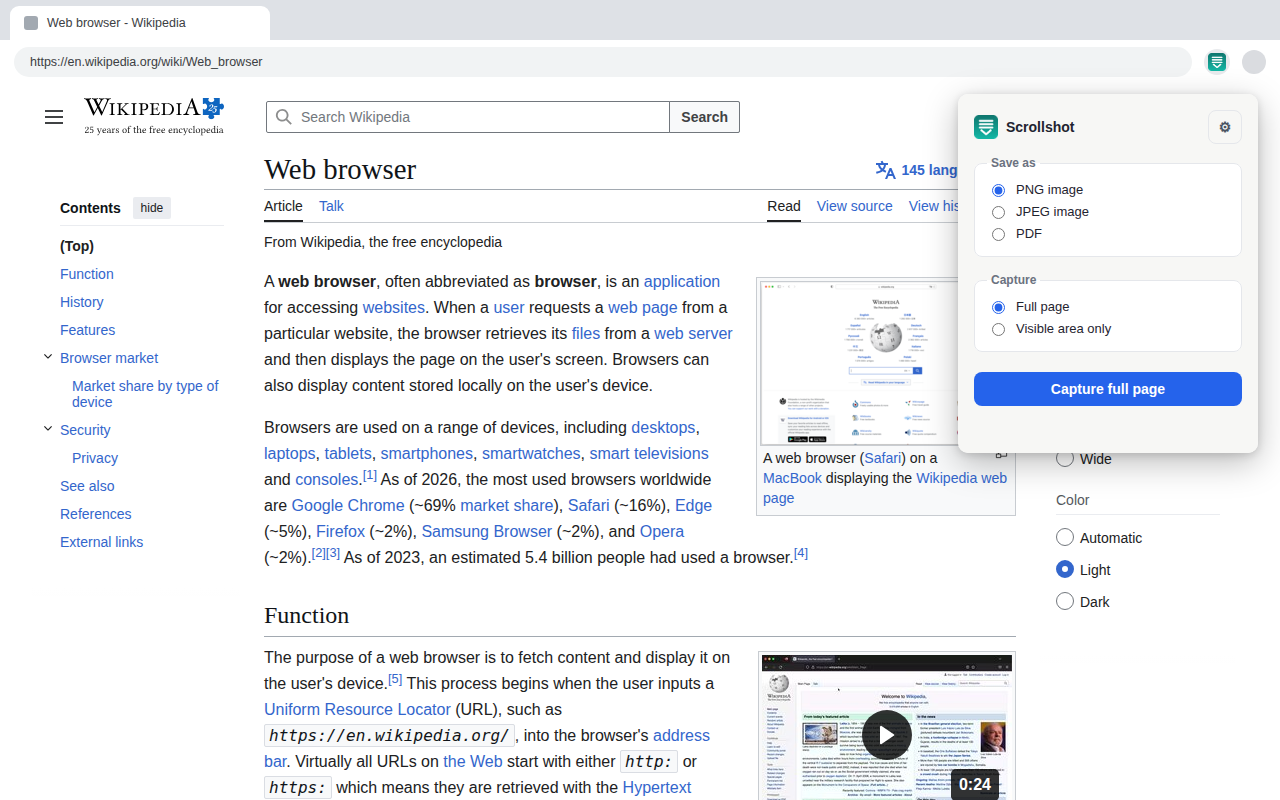
Press your shortcut or click the toolbar icon. Everything below happens in your browser, on your machine, in the time it takes to scroll the page once.
PHASE 01
Capture
Scrollshot walks the page from top to bottom, grabbing one viewport at a time and composing the slices onto a single canvas at your display's real pixel density.
Sticky headers, handled
Fixed and sticky elements are detected and neutralised before the scroll begins, so a floating nav bar doesn't get stamped across every slice of the finished image.
Lazy content, waited for
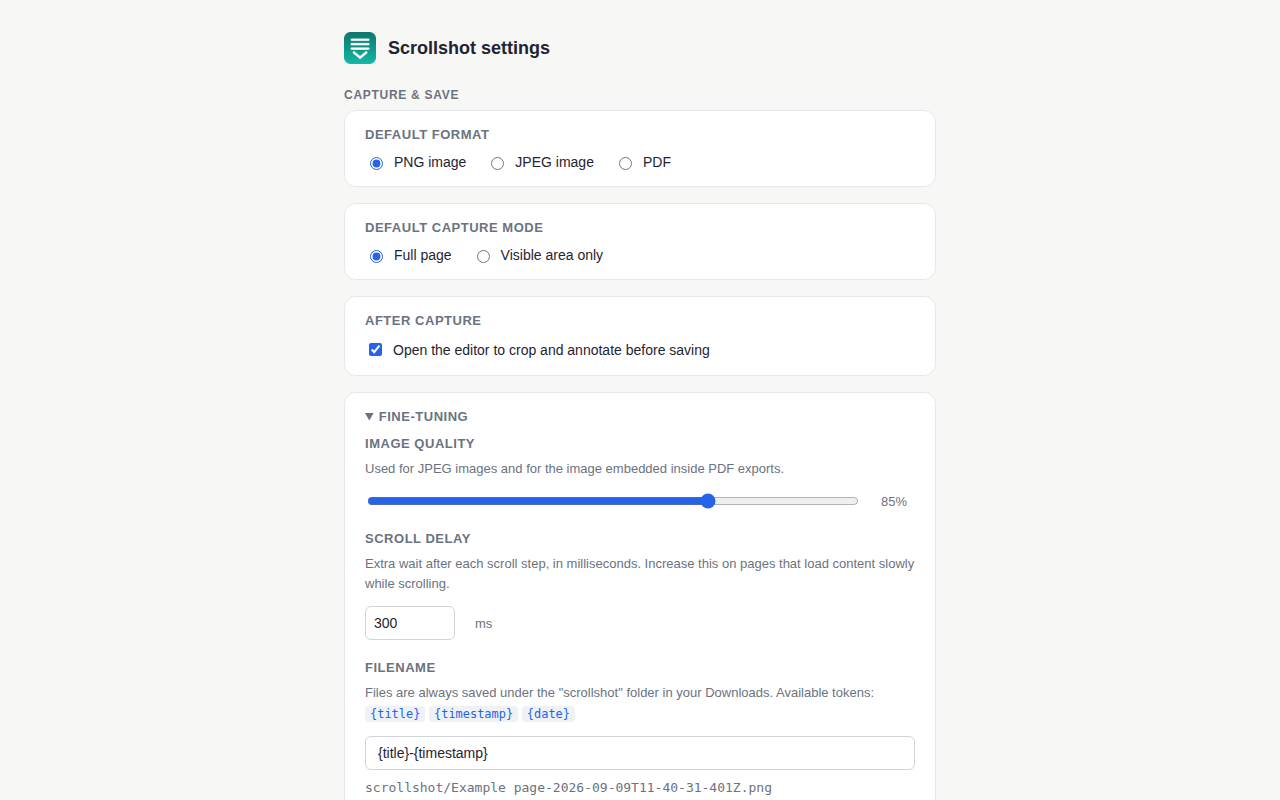
A configurable pause after each scroll step lets images and infinite-scroll sections load before the shutter fires. Slow site? Raise scroll delay in settings.
Inner scrollers too
When the page body doesn't scroll but a pane inside it does — dashboards, mail clients, docs apps — Scrollshot captures that scroller instead of the empty shell around it.
Long pages, no ceiling in practice
Up to 300 viewport slices per capture — tens of thousands of pixels tall. Progress is reported slice by slice so you always know where it is.
Just the fold, if you prefer
Visible area only mode skips the scrolling entirely and grabs what's on screen right now.
Three ways to fire it
The toolbar popup, a right-click on any page, or a keyboard shortcut you assign yourself — that last one captures without opening anything.
PHASE 02
Edit
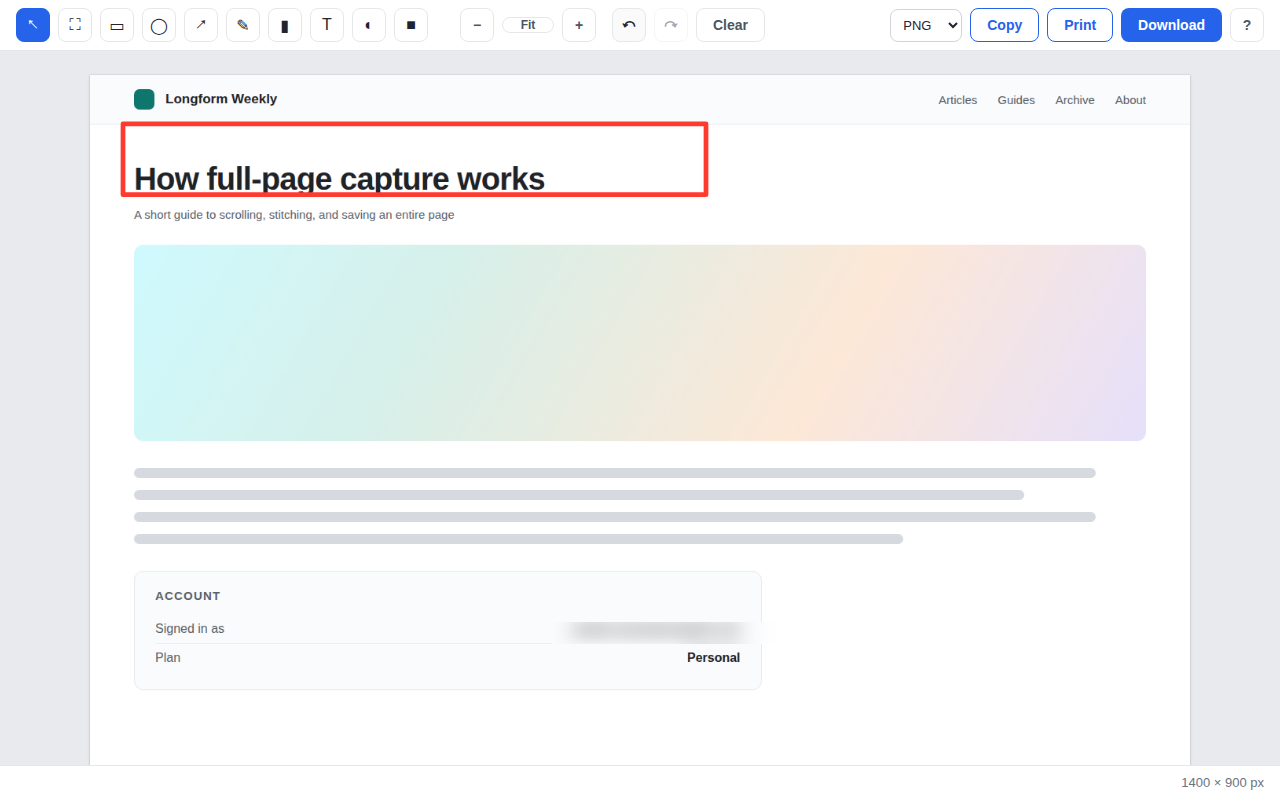
The capture opens in a full editor rather than dropping straight into Downloads. Redact first, save second — the order that keeps private things private.
Ten tools, every one on a single key
Blur or redact — your call
Blur softens a region with adjustable strength. Redact paints it out completely, because sometimes softened isn't gone.
Six swatches, plus any colour
Keys 1–6, or pick a custom colour. Stroke width, text size and blur strength each get a slider.
Crop to what matters
Drag a crop box anywhere on the capture. Zoom to fit, or to 100% for pixel work — Ctrl 0 cycles.
Undo all the way back
Full history with Ctrl Z and Ctrl ⇧ Z. Nothing is baked in until you export.
PHASE 03
Export
Save it, copy it, or print it. The format is a dropdown away and your naming convention is remembered.
PNG, JPEG or PDF
PNG for fidelity, JPEG when size matters — one quality slider drives JPEG and the image inside the PDF alike.
A PDF that isn't chopped up
The whole capture lands on one continuous PDF page instead of being sliced across A4 sheets mid-sentence.
Straight to the clipboard
Ctrl C in the editor puts the annotated image on your clipboard, ready to paste into a ticket or a chat.
Filenames you decide
Compose them from {title}, {timestamp} and {date}. Everything lands tidily in Downloads/scrollshot/.
Try it here
Mark up a screenshot without installing anything.
This is a stand-in for the real editor, running on a sample capture. Pick a tool, then drag on the image. The blur and redact behave exactly the way they do in the extension.
Privacy
Your page never leaves the machine it was on.
There is no server in this picture. Scrollshot has no backend, no analytics, no telemetry and no account system — the capture is composed in your browser, the editor runs in your browser, and the file is written by your browser's own download manager. Unplug the network and every feature still works.
That matters most for the captures you'd never paste into a web tool: an invoice, an internal dashboard, a bug report from a logged-in admin panel, a medical portal. Those stay yours.
Why each permission exists
Reads the one tab you invoked Scrollshot on, at the moment you invoke it. There is no "access your data on all websites" permission here.
Measures the page height, calms sticky elements, and scrolls the page during capture — then puts everything back.
Writes the finished file into Downloads/scrollshot/.
Remembers your settings, and holds the in-progress capture while the editor tab opens.
Powers the Copy button. Only ever writes; never reads your clipboard.
Adds the right-click entry so you can capture without reaching for the toolbar.
Tells you a shortcut-triggered capture finished when no popup was open to say so.
Runs housekeeping every half hour to clear finished captures out of temporary storage.
In context
Chrome can already take a screenshot. Here's the gap.
DevTools has a hidden full-size capture command, and there are plenty of web services that will do it if you hand them a URL. Both leave something out.
| Capability | Chrome DevTools capture | Web-based capture services | Scrollshot |
|---|---|---|---|
| Captures past the fold | Yes | Yes | Yes |
| Reachable without opening DevTools | Three menus deep | Paste a URL first | One click, or one key |
| Pages behind a login | Yes | Not your session | Yes — it's your tab |
| Annotate, blur and redact | No | Sometimes, after upload | Built in, before saving |
| PDF export | No | Varies | One continuous page |
| Page content sent to a server | Never | Always | Never |
| Waits for lazy-loaded images | Inconsistent | Varies | Yes, and you can tune it |
Questions
Before you install
Is it free?
Yes — the whole thing. No trial, no pro tier, no watermark on exports, no ads, and no upsell inside the editor.
Does my page get uploaded anywhere?
No. Scrollshot has no server to upload to. The capture is stitched in your browser, annotated in your browser, and saved by your browser. It works with the network disconnected.
Can it capture pages I'm logged into?
Yes. It photographs the tab you're already looking at, using your existing session — which is exactly why it can do things a URL-based service can't: your dashboards, your inbox, your admin panels.
What about really long pages?
A single capture runs up to 300 viewport slices, which on a typical laptop is well over 200,000 pixels of page height. Infinite-scroll feeds are handled too — the height is re-measured after every step, so a page that grows while you capture it doesn't get cut short.
Some images came out blank. What happened?
The page was still lazy-loading them when the shutter fired. Open Settings → Fine-tuning and raise Scroll delay — 600–800 ms clears up most image-heavy sites.
Which browsers does it work in?
Chrome 109 or newer, and the Chromium browsers that share its extension platform: Edge, Brave, Opera, Vivaldi and Arc. Install it from the Chrome Web Store in any of them.
Can it capture other tabs, or the browser interface itself?
No. It captures the content area of the one tab you invoke it on. Browser chrome, other tabs, and internal chrome:// pages are all out of reach — a restriction Chrome enforces, and a sensible one.
Do I have to use the editor every time?
No. Turn off Open the editor after capture in settings and captures go straight to your Downloads folder in your default format.
Capture the next long page properly.
Install it, pin it to the toolbar, give it a keyboard shortcut. That's the whole setup.